- Do the work
- Random photo on the phone
- WhatsApp / verbal explanation
- Time and materials on paper
- Office reconstructs
- Duncan clarifies what is missing
 ABC HOW TOABSOLUTE BOAT CARE · OPERATING COMPANION
PHYSICAL BEHAVIOUR · REAL TOOL
ONE TAP IF YOU KNOW. ONE SCROLL IF YOU NEED CONTEXT.
The interface does not force everyone through the same route. Certainty goes straight to Capture. Uncertainty finds context immediately below.
THE REAL CURRENT ALTERNATIVE
THE CLICK DOES NOT ADD WORK. IT REPLACES RECONSTRUCTION.
- Open the Project
- One tap to Capture
- Link Job · Piece · stage
- Continue working
- Normal state stays visible
- Only the exception asks for attention
The question is not: “Can we avoid the click?” It is: “Do we prefer one tap now or a five-person reconstruction later?”
REAL PROJECT SCREENONE TAP
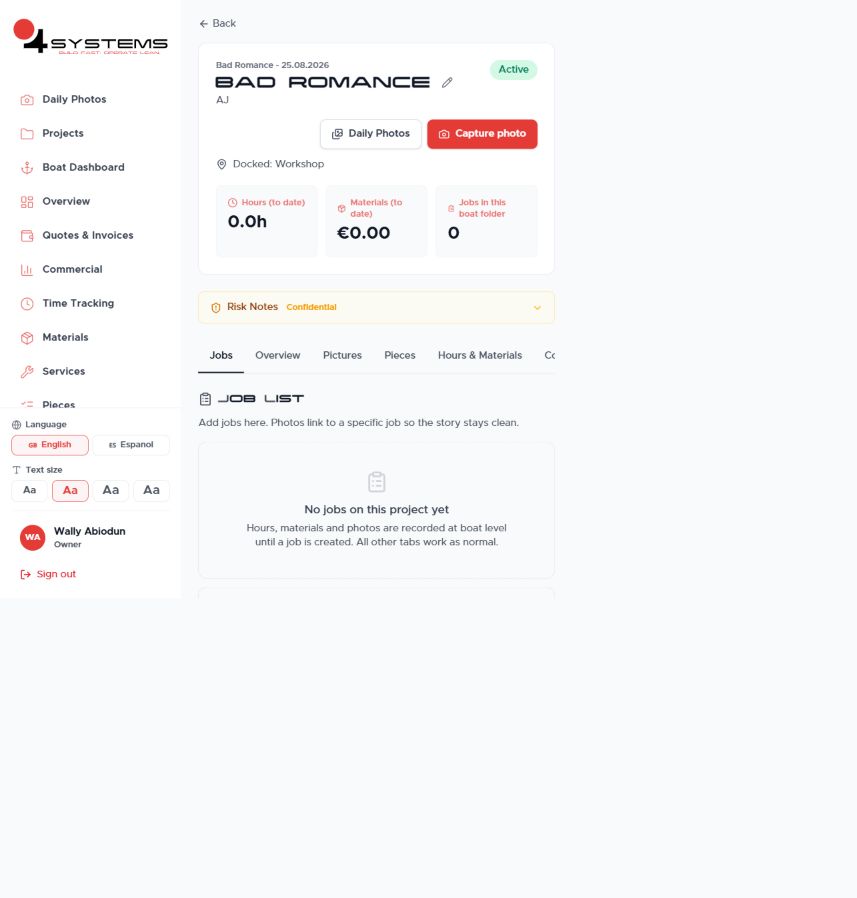 TAP
TAPThe craftsperson knows the work and reality still exists only in front of them.
One tap: Capture photo.
Reality enters the history; Job, Piece and stage are added next.
- 1OPEN PROJECT
- 2TAP CAPTURE PHOTO
- 3LINK JOB · PIECE · STAGE
- CONTINUE WORK
SAFE PRACTICE · NO LIVE DATA
CHOOSE THE REAL STARTING POINT.
The Project does not yet exist. Add First Observation Photos inside New Project, then create the Project. The choices reshuffle every time you reset.
0/10STEPS
RUNNING PROJECTFOUR CAPTURE ENTRY POINTS
CHOOSE A ROUTE TO REMEMBER ITIt will reopen automatically on this device. Copy the route link to bookmark it or use it elsewhere.
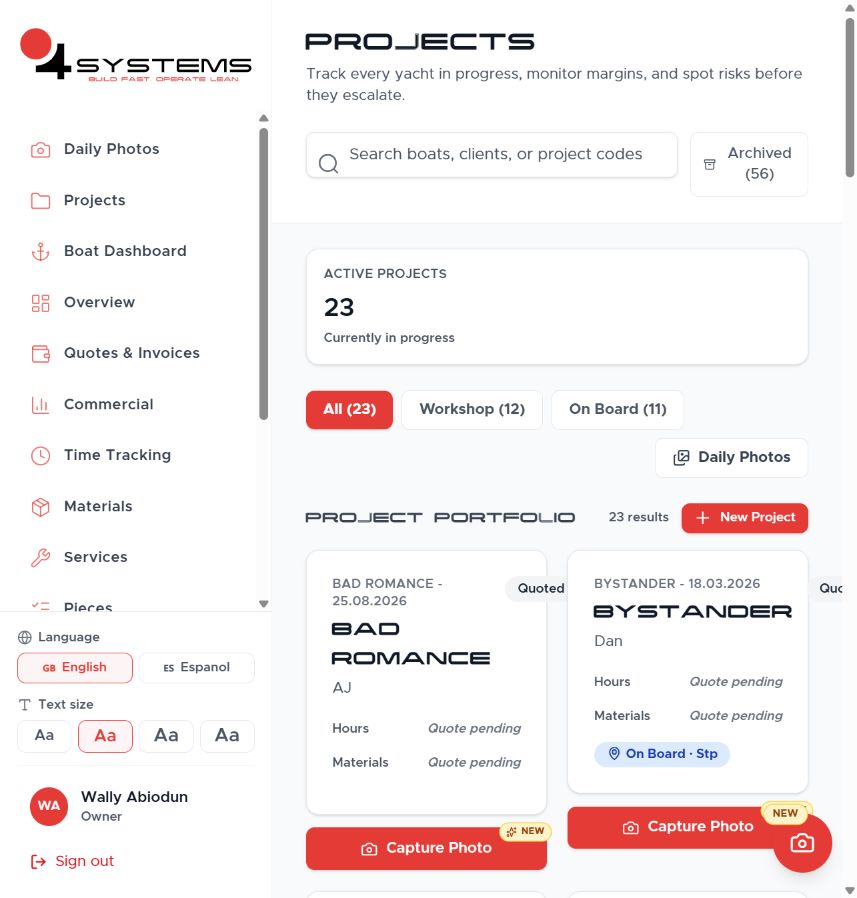
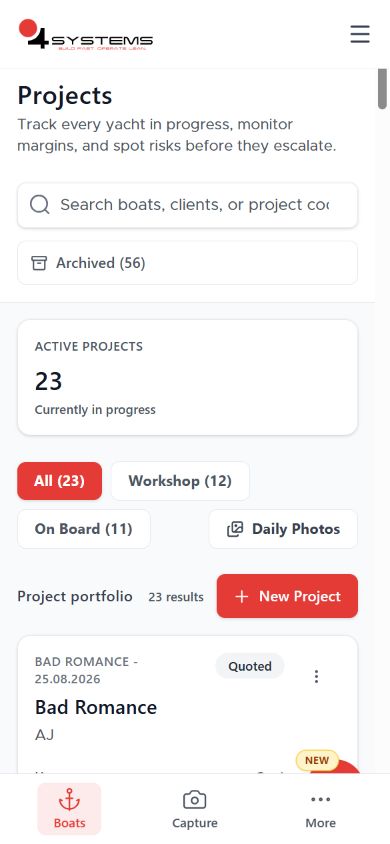
Daily Photos is for review. The Capture buttons add the next piece of evidence.
PROJECT
Create the container and its opening state.
PIECE
Give each physical object one identity.
MEANINGFUL CHANGES
Capture Before, During and After as often as reality changes.
Creation is infrequent. Evidence is the everyday habit.
WHAT DO YOU TOUCH NEXT?Choose the first physical action.
ONE FIELD · FOUR DECISIONS
EACH LEVEL WIDENS WHAT THE PERSON CAN SEE.
Local decision.
Coordination decision.
Operating decision.
Asset and customer decision.
Capture sits across every level because it is how reality enters the system.
BEFORE → TAP → AFTER
EVERY CLICK MUST CHANGE THE STATE.
Open only the group you need. Administration stays behind the scenes; the person performs only the next useful physical action.
01Enter and captureOPEN ↓
Before: You know the Boat or Project, but the operating context is not loaded.
Tap the correct Project.After: Capture appears first; Jobs, Pictures, Pieces and Overview sit one scroll below.
Before: A physical state exists only in the workshop.
Tap Capture photo, then Take Photo.After: Reality is timestamped and connected to the person and Project.
Before: The image is raw evidence.
Tap Use Photo.After: The tool asks which Job, Piece and stage the evidence belongs to.
Before: Responsibility is not yet explicit.
Tap the Job once.After: The evidence inherits the intended work context.
Before: Legitimate work exists but no agreed Job represents it.
Create the Job only from agreed scope.After: The new work becomes visible, assignable and commercially traceable.
02Orient when neededOPEN ↓
Before: You know work exists but not its state.
Tap the Job.After: Instructions, evidence, Piece and history answer what should happen next.
Before: You understand your Job but need the physical context around it.
Tap the Piece.After: Related work on the same object or area becomes visible.
Before: You need history, not another conversation.
Tap Pictures.After: Previous observable states appear in sequence.
Before: You need broad orientation rather than detail.
Tap Overview.After: Basic progress and state are visible without reconstruction.
Before: A local action is complete.
Tap Back.After: The Project remains the operating home and context is preserved.
03Make the work visibleOPEN ↓
Before: Labour has been consumed but is invisible.
Tap Add Time and enter the quantity.After: Actual effort is attached to the work and can be compared with expectation.
Before: Material has been used but is not in the trace.
Tap the material and enter the quantity.After: Actual consumption is connected to the Job and Piece.
Before: The inherited condition has not been preserved.
Tap Before.After: A baseline exists.
Before: The method is changing the object.
Tap During.After: The sequence becomes visible, not merely the start and finish.
Before: The intended result exists but is not recorded.
Tap After.After: The outcome can be compared with the baseline and Job intent.
Before: One state is saved and the work continues.
Tap Capture More.After: The next meaningful change enters the same history without starting again.
04Exception and handoverOPEN ↓
Before: Reality no longer matches the expected sequence.
Tap Flag Issue.After: The deviation is attached to the work and visible to the right role.
Before: The person lacks authority or certainty.
Tap Request or Escalate.After: A decision-ready exception reaches the Team Leader, Duncan or Office.
Before: The exception cannot progress without judgement.
Record the authorised decision.After: The team can continue with rationale and authority intact.
Before: The craftsperson believes their responsibility is finished.
Tap Complete Job.After: The work enters a defined completion or QC state.
Before: Completed work has not been formally accepted.
Tap Accept.After: The result becomes a trusted completed state.
Before: The next person cannot yet act confidently.
Tap Handover.After: Ownership and context pass forward without reconstruction.
NEVER CLICK TO FEED THE SOFTWARE.
Click only when the click records a meaningful change in the work. If everything is normal, let the team continue. If something changes, concentrate human judgement there.
SEECAPTUREORIENTACTNOTICEHANDOVER